Tag Groups
Tag groups turn qBittorrent tags into charts on each tracker's Torrents tab. Define them once and they appear everywhere.
What They're For
A few examples:
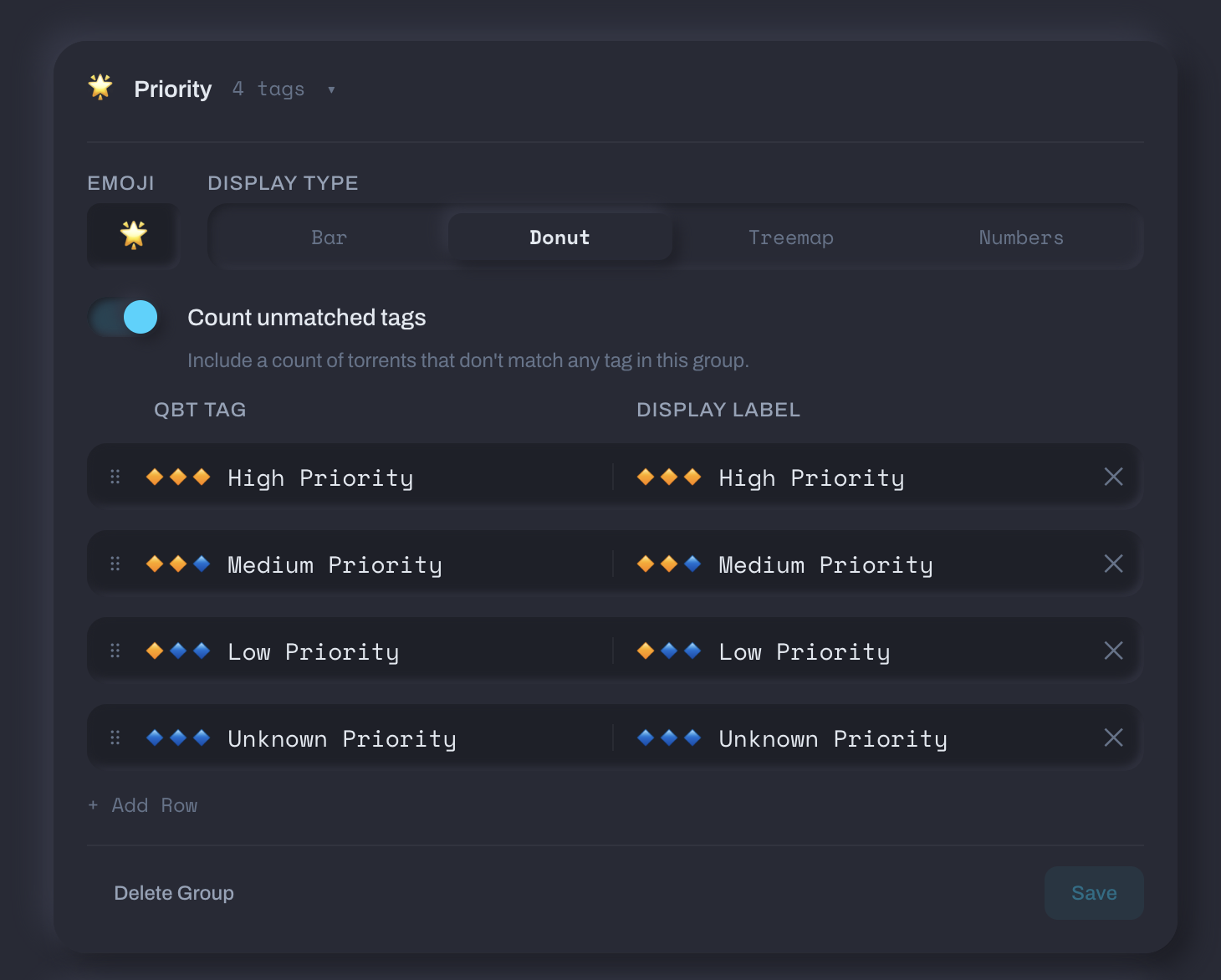
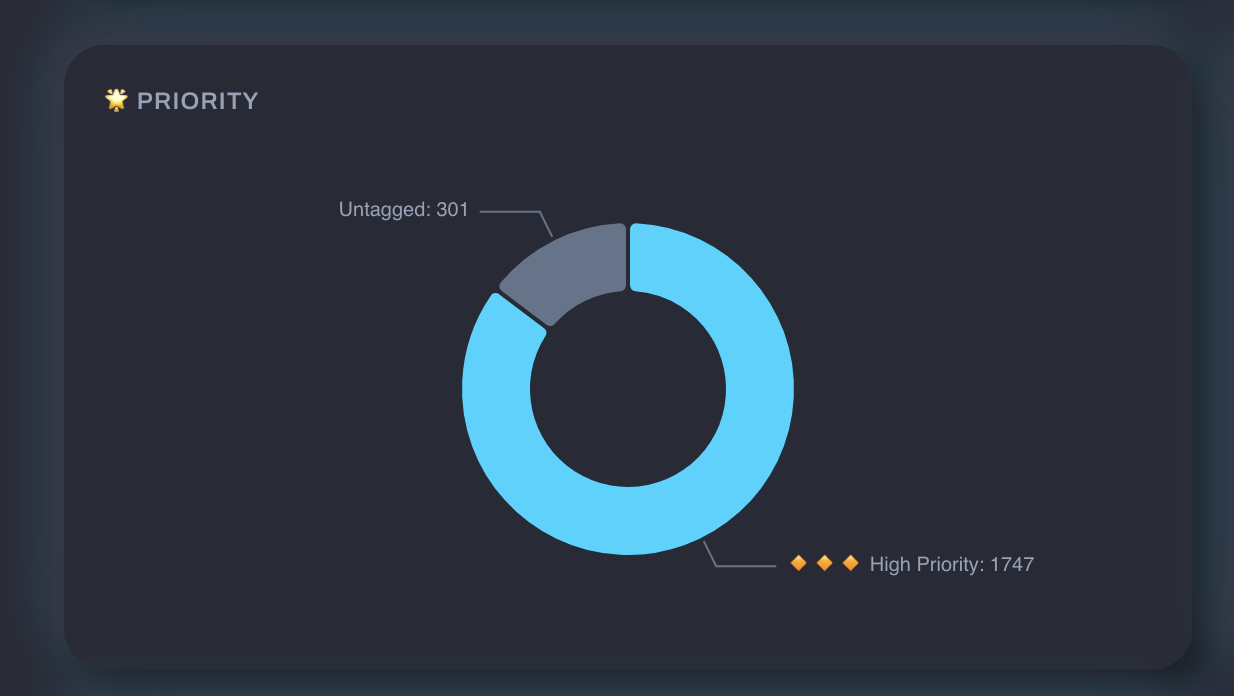
Priority breakdown: group your High Priority, Medium Priority, Low Priority, and Unknown Priority tags into a single group. See the split as a donut chart.
This is what the Priority group looks like on a tracker's Torrents tab:
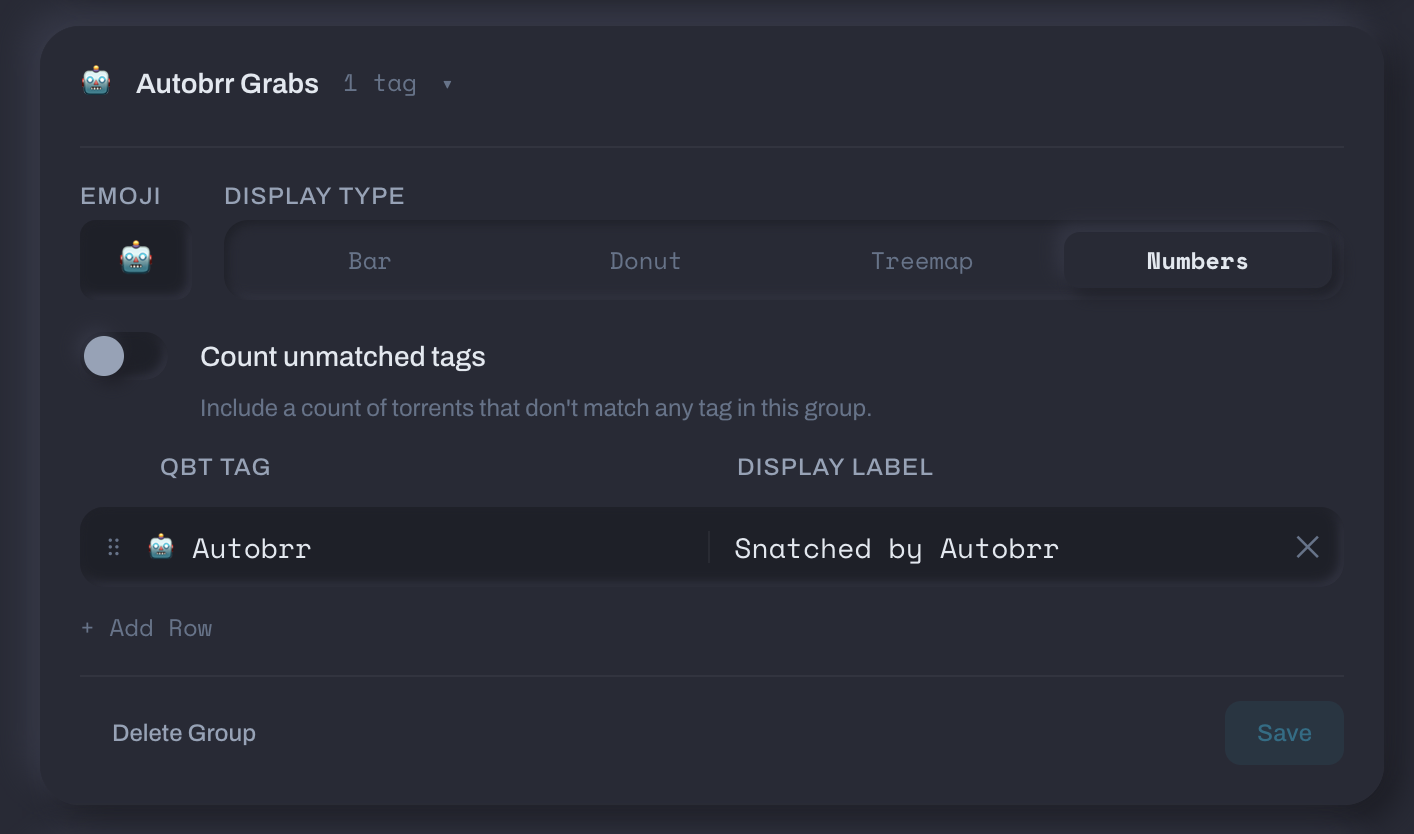
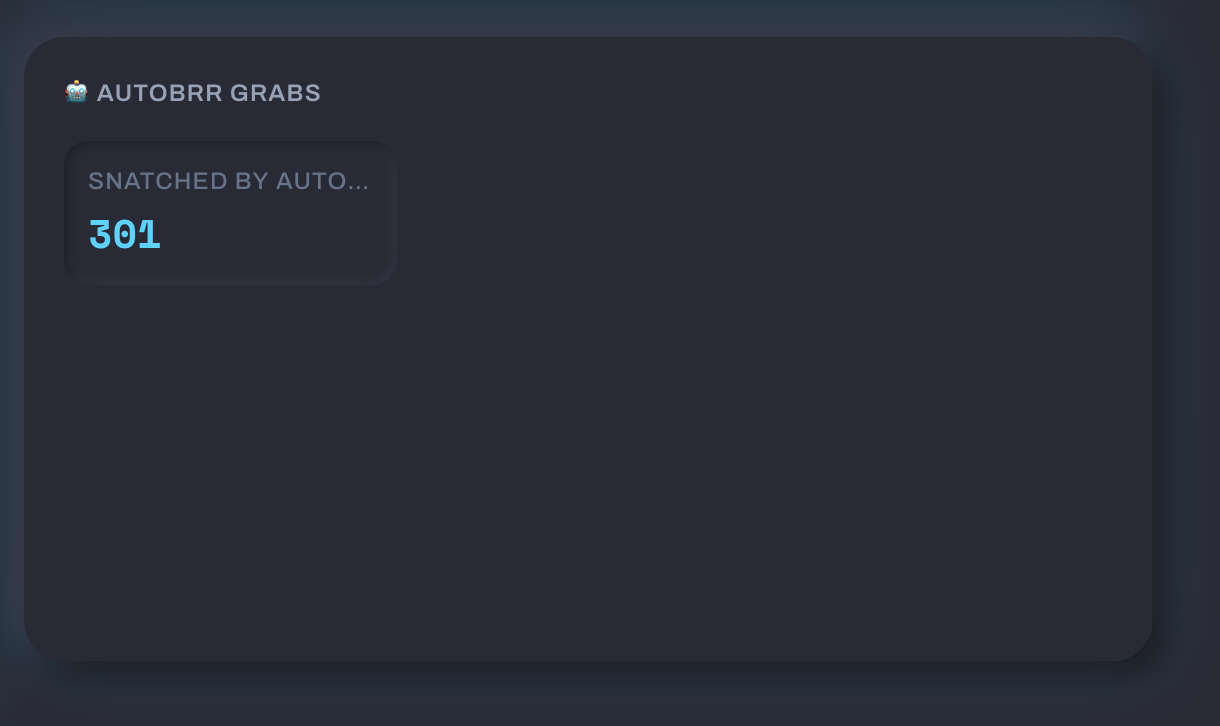
Automation tracking: create an "Autobrr Grabs" group with your Autobrr tag to see how many torrents were auto-snatched. The numbers display type works well for single-tag groups.
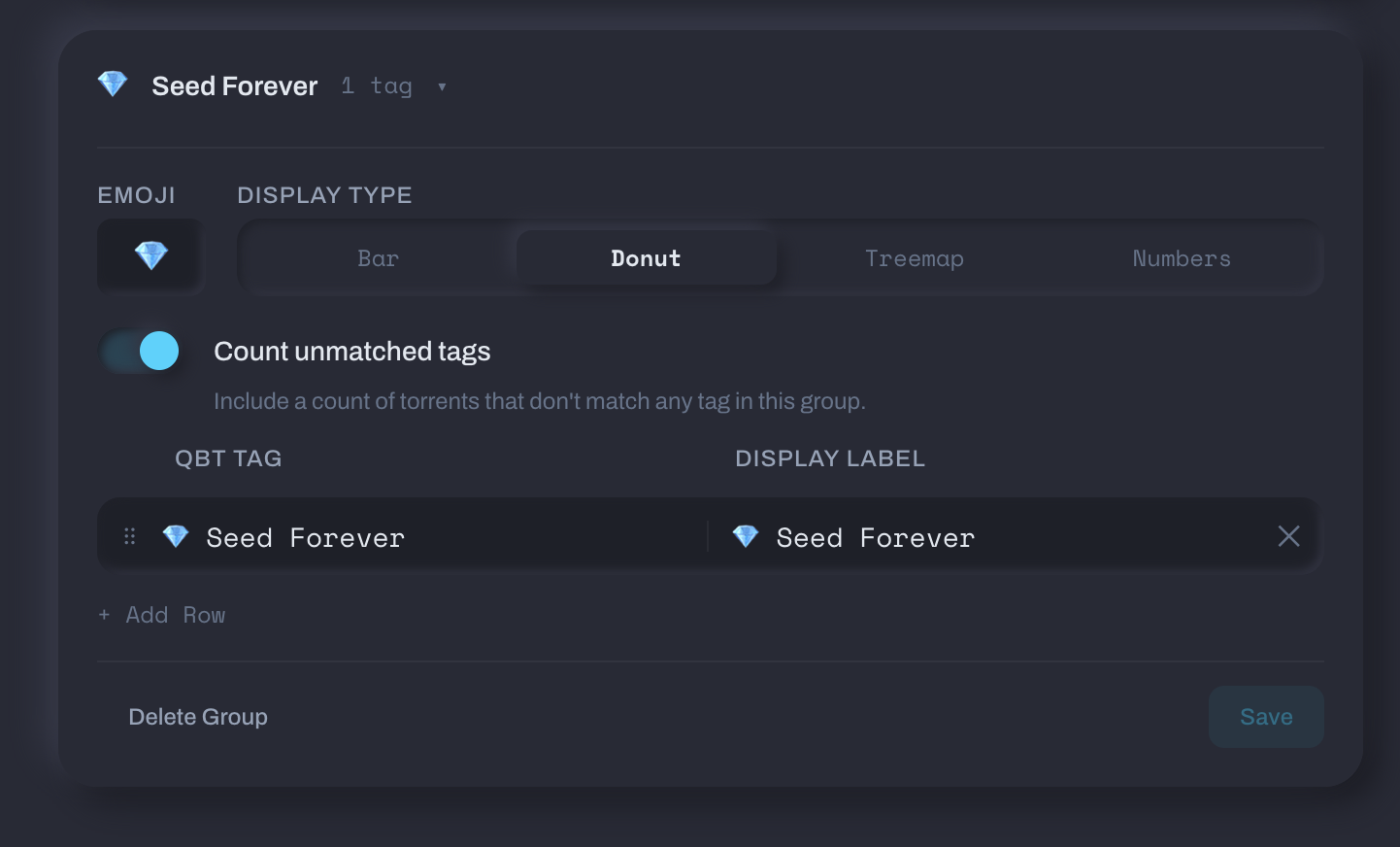
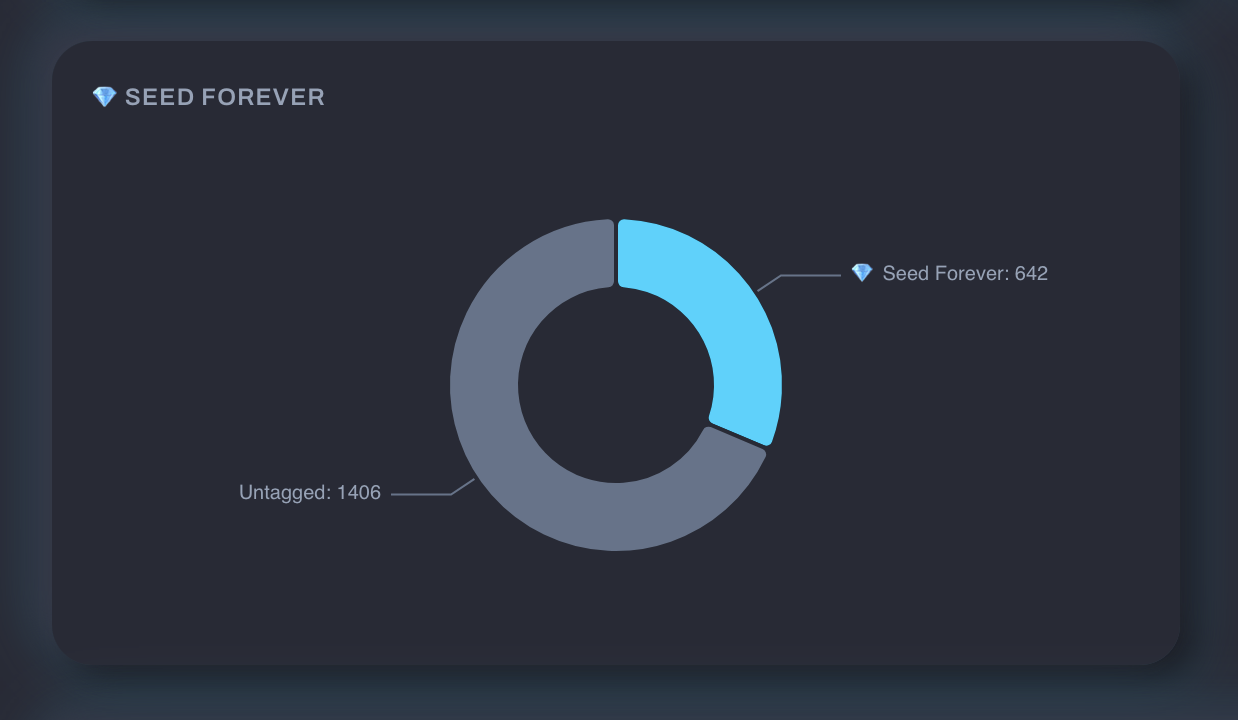
Long-term seeds: a "Seed Forever" group with one tag to track how many torrents you've committed to permanent seeding.
Creating a Tag Group
- Go to Settings → Download Clients and scroll past your client cards
- Click Add Tag Group
- Name it and pick an emoji
- Add rows mapping qBittorrent tags (exact strings) to display labels (what appears in the chart)
- Save
The group appears instantly on the Torrents tab for trackers with matching torrents. If there are no matches, the chart won't appear.
Display Types
Each group can use a different chart style:
| Type | Best for |
|---|---|
| Bar | Comparing counts across many tags |
| Donut | Showing proportions of a whole |
| Treemap | Dense view with lots of tags |
| Numbers | Simple counts, no chart |
Count Unmatched Tags
Enable this to add a segment showing torrents with no tag in the group. Great for seeing what's still uncategorized.
Tag Matching
Tags are case-sensitive and must match exactly. If qBittorrent says High Priority, typing high priority won't work.
Check your qBittorrent tags
Open qBittorrent and look at the tag list in the sidebar to see the exact tag names. Copy them character-for-character into Tracker Tracker.
Automating with qbitmanage
If you use qbitmanage to automate tagging in qBittorrent, tag groups light up automatically. qbitmanage writes the tags, and Tracker Tracker reads them. See the qbitmanage Integration page for setup examples including priority breakdowns, seed-forever tracking, and share limit health monitoring.
Editing and Reordering
- Rename: double-click the group name
- Reorder tags: drag the handle on the left
- Remove a tag: click the X on the right
- Delete a group: click Delete Group at the bottom (requires confirmation)
Good to Know
- Tag groups are global, so one group works across all trackers.
- Changes take effect when you reload a tracker page.
- Backups include tag groups and restore them automatically.