Common Error Messages
Error strings in the Tracker Tracker interface, with causes and fixes.
Understanding Tracker Health
The PulseDot next to each tracker name indicates polling status:
| State | Color | Meaning |
|---|---|---|
healthy |
Cyan | Ratio ≥ 2.0, polling normally |
warning |
Amber | Ratio between 1.0 and 2.0, a thin buffer |
no-seeds |
Red | Zero active seeds, nothing is uploading, whatever the ratio says |
critical |
Red | Ratio < 1.0, or the tracker has warned your account |
error |
Red | The last poll failed, but polling has not paused yet |
paused |
Red | Polling has been automatically suspended after repeated failures |
offline |
Gray | No snapshot data exists yet (tracker was just added, or all snapshots were pruned) |
When a tracker matches more than one row, the most severe state wins: critical outranks no-seeds, which outranks warning. So a tracker with a 1.4 ratio and nothing seeding shows no-seeds, because the ratio band alone would not tell you that you need to start seeding.
Ratio or Stats Not Updating
Stats only change when Tracker Tracker captures a new snapshot. If your ratio, upload, or seeding count looks stale, work through this checklist.
Step 1. Check the poll interval
Go to Settings → General and check Tracker Poll Interval (15–1440 minutes).
If it's 240, stats update every 4 hours. That's normal.
Fastest update rate
15 minutes is the fastest. Stats won't update more often, even with page reloads.
Step 2. Check if polling is running
Look at the PulseDot next to the tracker name. If it's paused or error, fix that first before worrying about stale stats. See Automatic Poll Pausing below for guidance.
Step 3. Trigger an immediate poll
Don't wait for the next scheduled poll.
- Open the tracker's detail page.
- Click Poll Now.
- The page refreshes with new stats if it works.
If Poll Now returns an error, the Poll Error Banner will show the reason.
Step 4. Check the chart time range
Charts show data over your selected range. A narrow range hides changes.
- Find the day range selector in the right sidebar on Data & Analytics.
- Try a broader range (30 or 90 days) to see historical data.
- If only today is selected, you'll only see today's snapshots.
Step 5. Confirm snapshots are recording
If Poll Now works but charts don't move, hard-refresh first (Cmd+Shift+R on Mac, Ctrl+Shift+R on Windows/Linux).
Then check the Last Polled timestamp on the tracker detail page. It should match your most recent poll.
If Last Polled updated but the chart didn't, the API returned the same values. That's normal.
Automatic Poll Pausing
After 4 consecutive failed polls, the tracker automatically pauses to prevent hammering a broken tracker. When this happens:
- The PulseDot switches to
paused - The Poll Error Banner appears at the top of the tracker detail page with:
- Red "Polling Paused" heading
- Pause timestamp
- Last error (e.g.,
Authentication failed,Host not found) - Resume Polling button
Verify the cause before resuming
Fix the underlying problem first. If you resume without fixing it, the tracker will fail again and re-pause immediately.
Resuming a Paused Tracker
- Open the tracker detail page.
- Find the Poll Error Banner at the top with the last error below "Polling Paused".
- Fix the problem (see specific error sections below).
- Click Resume Polling, then Poll Now to verify immediately.
Tracker poll errors
These appear in the Poll Error Banner on the tracker detail page.
Authentication failed
Cause: The tracker rejected the token (HTTP 401/403 or explicit "Unauthorized"/"Forbidden").
Common reasons:
- Token was regenerated on the tracker site.
- Token was entered wrong (whitespace, partial copy).
- Account API access was revoked or restricted.
- Tracker requires an IP allowlist.
Solution
- Log into the tracker and find your API token (usually under "Security", "API", or "Edit Profile").
- Copy it carefully.
- In Tracker Tracker, edit the tracker settings and paste the new token.
- Save, then click Resume Polling, then Poll Now.
Host not found
Cause: DNS resolution failed for the hostname.
Solution
- Test:
nslookup <tracker-hostname>from your Docker host. - If using VPN or custom DNS, add
dns:todocker-compose.ymlif needed. - If the tracker moved to a new domain, update Tracker Tracker. The address comes from the built-in tracker registry, so a domain change ships as a release. If no release carries it yet, open an issue naming the tracker.
Host unreachable
Cause: Hostname resolved but unreachable at the network layer. Route missing or firewall blocking.
Solution
- Check if the tracker loads in your browser.
- Verify VPN or firewall routing is up.
- Confirm no egress firewall on Docker host is blocking outbound.
Connection refused
Cause: Host reached but connection refused. Usually wrong port or the tracker's down.
Solution
- Confirm the tracker loads in a browser at the address shown on its detail page.
- If it only loads on a different port or scheme, the registry entry is out of date: open an issue naming the tracker.
Connection reset
Cause: Connection established then terminated by the host. Often SSL/TLS mismatch or invalid certificate.
Solution
- Use
https://if required. - Self-signed certificates aren't supported.
Request timed out
Cause: API doesn't respond within 15 seconds. May happen during maintenance or heavy load.
Solution
- Wait a few minutes and try Poll Now again.
- If persistent, check if a proxy is adding latency.
- The 15-second timeout can't be changed.
IP temporarily banned by tracker
Cause: Tracker's rate-limiting blocked your IP. Poll interval too short or automated requests treated as abuse.
Solution
- Wait for the ban to expire, typically minutes to hours.
- Increase Poll Interval in Settings → General to 60 minutes (or higher for sensitive trackers).
- Resume polling after the ban clears.
Proxy connection failed
Cause: Use Proxy is enabled and the proxy is unreachable or erroring. We don't bypass required proxies.
Solution
- Check Settings → Proxy and verify host, port, type, username, and password.
- Confirm the proxy is running and reachable.
- Or disable Use Proxy in tracker settings.
Cloudflare challenge blocked the request
Cause: Cloudflare answered with a challenge page in place of the tracker's page, and wants a browser check first.
Solution
- Open the tracker in the browser you copied the cookies from and pass the check.
- Copy the cookies again,
cf_clearanceincluded where the tracker sets it, and paste them into the tracker's settings from that same browser, since Tracker Tracker records the User-Agent of the browser you save from. - TorrentLeech has no cookies to refresh. Wait a while, and raise the poll interval if the challenge keeps coming back.
- If the tracker paused after repeated failures, click Resume Polling, then Poll Now.
Tracker redirected to another site
Cause: The tracker answered with a redirect to a different site. Tracker Tracker does not follow it, because that would send your session cookies to another host.
Solution
- Open the tracker in a browser and check whether it has moved to a new address.
- If it has, open an issue with the new address so the tracker's entry can be updated.
Tracker redirected too many times
Cause: The tracker kept redirecting between its own pages without answering with one.
Solution
- Open the tracker in a browser and check that its pages load.
- If they do, check
docker compose logs tracker-tracker-appfor thePoll failed for trackerline and open an issue with it.
Stale error banner (no pause)
If you see a Last Error banner without "Polling Paused", a recent poll failed but not enough to trigger a pause. It clears on the next success.
No action if the last poll succeeded
The banner shows the most recent error even if later polls recovered. If the PulseDot is healthy, warning, or critical, polling already recovered.
Tracker returned an unexpected response
Cause: The tracker answered, but with something the adapter cannot read, such as a maintenance page, a login page in place of your profile, a changed page layout, or a reply missing a field the stats need.
Solution
- Open the tracker in a browser and check that the site is up and that you are still logged in.
- Click the bug icon (Fetch raw API response) in the tracker's header to see the response that failed.
- If the site looks normal, the tracker may have changed its pages or API. Check
docker compose logs tracker-tracker-appfor thePoll failed for trackerline and open an issue with it.
API returned <status code>
Cause: API returned an unexpected status. E.g., 429 = rate limit, 500/503 = server error.
Solution
- 429: Increase poll interval and wait.
- 500 / 503: Tracker having issues, so wait and retry.
- Other: Check tracker's status page or forums.
Poll failed (generic)
Cause: Unexpected error not matching known patterns.
Solution
Check logs: docker compose logs tracker-tracker-app for a line with Poll failed for tracker + raw error.
Download client errors
These appear on individual client cards in Settings → Download Clients.
Authentication failed (qBittorrent)
Cause: Wrong username or password.
Solution
- Confirm qBittorrent credentials in its Web UI settings.
- Update in Settings → Download Clients.
- Use Test Connection to verify.
Session expired (qBittorrent, auto-handled)
Cause: Session expired (HTTP 403). We re-authenticate automatically on next request.
No action needed
Handled transparently. Persistent errors are more likely wrong credentials.
Connection refused (qBittorrent)
Cause: Web UI not accessible at the configured host/port.
Solution
- Check host and port match qBittorrent's Web UI config.
- Confirm qBittorrent is running with Web UI enabled.
- If on a different container, confirm the port is reachable.
- Verify SSL toggle matches qBittorrent's scheme.
Host not found (qBittorrent)
Cause: DNS resolution failed.
Solution
Use the container name (if in same Docker stack) or an IP instead of a hostname.
Request timed out (qBittorrent)
Cause: qBittorrent doesn't respond within 15 seconds. May happen during heavy indexing.
Solution
Wait and retry. If persistent, check qBittorrent's CPU and memory.
Authentication and session errors (Tracker Tracker login)
HTTP 429: Too many failed login attempts
Cause: Auto-lockout triggered after too many failed attempts.
Solution
Wait for the lockout to expire (time shown on login page). If you can't wait, connect to the database and clear lockedUntil in the appSettings table.
Login succeeds but redirects back to login
Cause: Session cookies marked Secure but app accessed over plain HTTP. Browsers discard Secure cookies on HTTP.
Solution
If using http://, no action needed on recent versions. If serving over HTTPS via proxy, set BASE_URL=https://your-domain.com in .env.
TOTP: Invalid code
Cause: Code incorrect or expired (valid 30s). Clock drift invalidates codes.
Solution
- Sync your device clock (NTP). Even 30-60s drift breaks codes.
- Wait for the next code and retry.
- Or use a backup code (
XXXX-XXXXformat, one-time use).
TOTP: Lost authenticator / no backup codes
Cause: No access to authenticator app and no backup codes.
Database access required
No in-app recovery. Connect to PostgreSQL and run:
Then log in and reconfigure TOTP.
Errors when adding or editing a tracker
Tracker test failed (AvistaZ / cookie-based trackers)
Cause: Cookie string contains a non-ASCII character (usually … from browser truncation).
Firefox and some Chromium browsers truncate long header values in their DevTools display, replacing the end with a … (ellipsis) character. If you select and copy the displayed text instead of using "Copy Value", the truncated string gets pasted into the dialog. HTTP headers can't contain non-ASCII characters, so the connection fails.
Solution
- Open DevTools → Network tab → click any request.
- Find the Cookie header in Request Headers.
- Right-click the Cookie header → Copy Value (do not select the text manually).
- Paste the full value into the Add Tracker dialog.
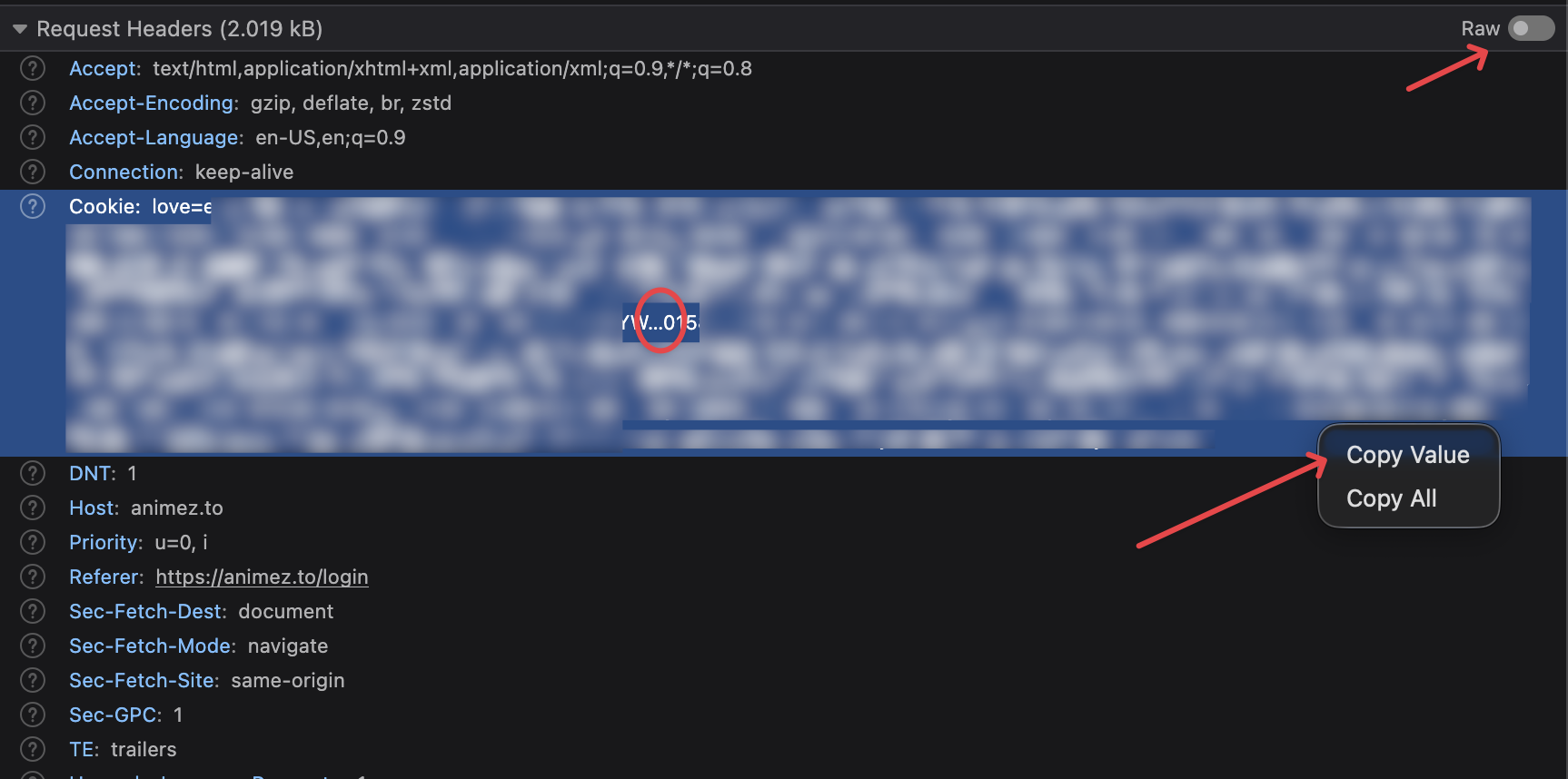
How to tell if your cookies are truncated
The Add Tracker dialog shows a yellow warning if it detects a … character in the cookie string. If you see this warning, re-copy using right-click → Copy Value.
baseUrl must use https:// or http://
Cause: URL uses unsupported scheme (e.g. ftp://) or missing scheme.
Solution
Prefix with https:// or http://.
baseUrl must not target localhost or a private network address
Cause: URL resolves to a private IP or localhost. We block these for security.
By design
Tracker URLs must be public. Internal or self-hosted trackers can't be added.